TRY OMARCHY FOR LINUX
The full Omarchy desktop.
In a window on your Linux PC.
Omarchy runs in a virtual machine, so you can use its apps, themes and keyboard-first workflow without replacing your distro or repartitioning a drive. Install it like any other app.
Free & open source · x86_64 · KVM · Flatpak
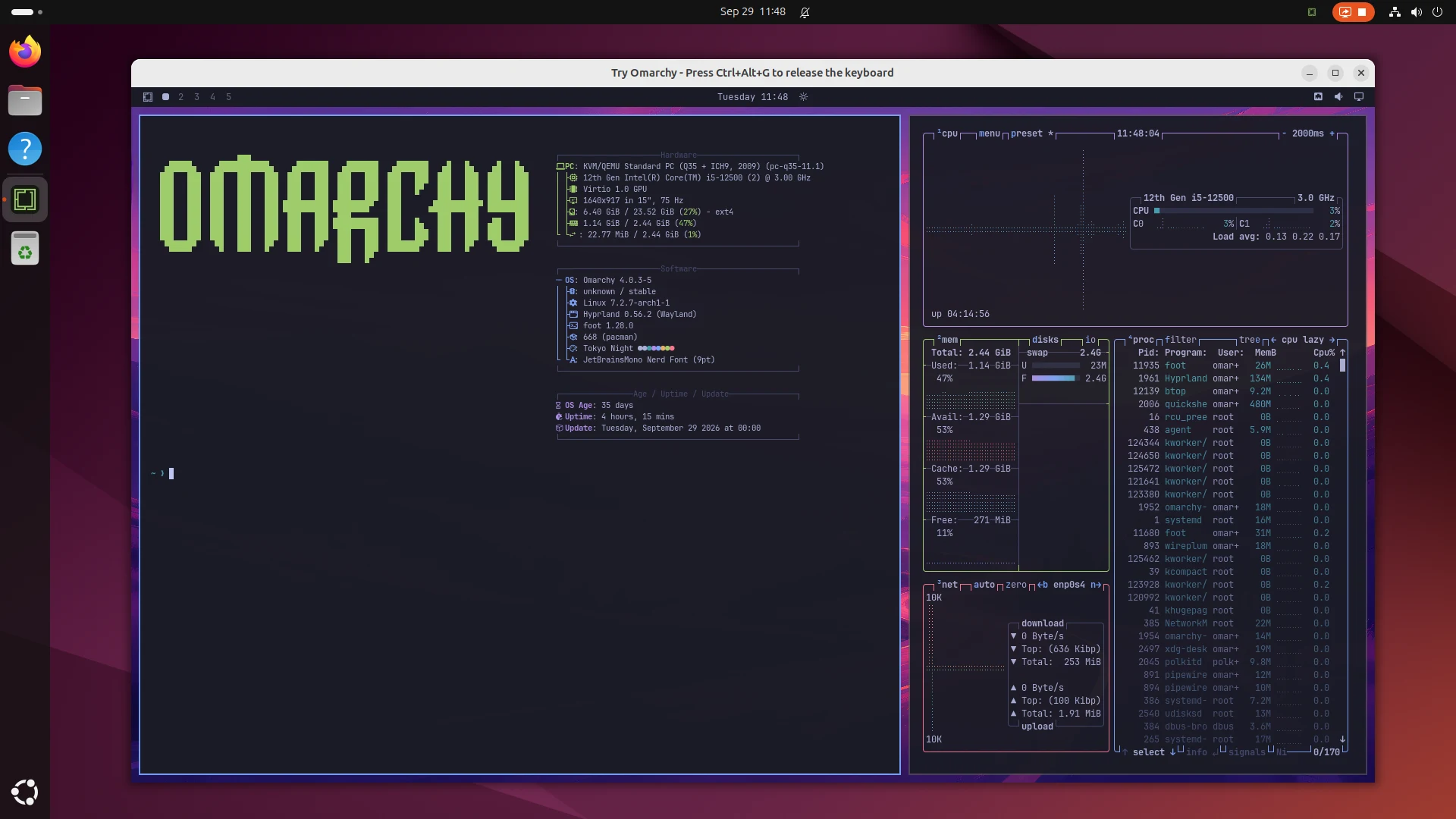
Install in three steps.
Install with your software center or the terminal. Ubuntu and NixOS need Flatpak support enabled first.
- Download TryOmarchy.flatpakref. Open it in your software center, such as GNOME Software, KDE Discover, or Software Manager on Linux Mint, and choose Install.
- Open Try Omarchy from your app menu, choose Set up Omarchy, then My own username and password. It downloads Omarchy (about 2 GB) and starts it, and Omarchy’s normal setup asks for your username and password.Just want a quick look? Choose Quick start instead. It skips the account form and signs you in as omarchy, with the password omarchy. Choose location lets you pick where to store Omarchy first.
- Click the Omarchy window and press Super+Space for Omarchy’s menu. App updates arrive through your software center.
On Fedora, choose Enable if Software asks about third-party repositories, since the app’s runtime comes from Flathub. No Flatpak support yet? Set up Flatpak for your distribution
NixOS needs Flatpak enabled first. Linux Mint may show an Unverified Flatpak badge before installation because the app comes from its own repository. See the distribution setup notes.
Before you start.
- A 64-bit x86 PC with hardware virtualization (KVM). ARM is not supported.
- About 15 GB of free disk space. The VM’s disk is 24 GB, but it only takes up the space Omarchy actually uses.
- 8 GB of memory is recommended. The app sizes Omarchy to your PC, and you can change its memory in Settings.
- A Wayland or X11 desktop. Tested on Ubuntu, Fedora, Linux Mint and NixOS, and with KDE Plasma and Xfce.
- The app runs in the Flatpak sandbox with no access to your home folder. Files reach it through your desktop’s file chooser or a shared folder you pick.
Questions.
Is this the full Omarchy or a trial version?
It is the full Omarchy desktop, running in a virtual machine. Nothing expires, and what you install and change stays. The quick-start account is a regular Omarchy user too. The differences are that sudo does not ask it for a password and SSH accepts only keys for it, since its password is public.You choose the account once, when Omarchy is first set up: My own username and password, or Quick start. To start over with a VM in the app’s default storage, back up anything you want to keep, choose Delete this VM in the app’s home screen menu, and set it up again. This action does not delete a VM in a folder you chose yourself.
How do I know my PC can run it?
You need a 64-bit x86 PC with hardware virtualization turned on and permission to use KVM. This command checks for the KVM device. If it is missing, check virtualization (Intel VT-x or AMD-V/SVM) in your firmware settings. Try Omarchy also checks whether your account can use it and explains what to change if access is denied.
ls -l /dev/kvmHow do updates work?
The installer adds the Try Omarchy update source, so new versions of the app arrive through your software center like your other apps, or with flatpak update. Your VM and files carry over. Omarchy itself updates from its own menu, under Update, the same as on any Omarchy install.
How do I get my keyboard back?
On Wayland, Super and your other shortcuts go to Omarchy while its window is focused. On X11, Omarchy captures the keyboard only while the pointer is over its window; move it out to use your desktop’s shortcuts. Ctrl+Alt+G releases the keyboard until you click the window again. Ctrl+Alt+F switches fullscreen.
What happens if I uninstall it?
Uninstalling keeps your VM unless you also delete the app’s data, so reinstalling picks up where you left off. Delete this VM in the app’s home screen menu removes a VM in the app’s default storage. A VM in a folder you chose yourself stays there even if you uninstall the app and delete its data.
What works on Linux?
Omarchy inside it is the regular desktop. Setup, files, backups and recovery, live audio switching, camera access and port forwarding all work. Gestures, USB passthrough and bridged networking are not in the Linux app yet.